Add Swappable Tasks to an Entrypoint Graph#
This how-to explains how to add swaps to an Entrypoint task graph in the Dioptra GUI. A swap lets a job select one task from a set of compatible tasks while keeping the rest of the workflow unchanged.
Prerequisites#
Prepare Your Deployment - A deployment of Dioptra is required.
Set Up Dioptra in the GUI - Access Dioptra services in the GUI, create a user, and log in.
Create Plugins - Create and register the Function Tasks to use in the swap.
Create Entrypoints - Create an entrypoint and attach the plugins that contain those tasks.
The tasks in a swap must have the same number of output parameters and the
same output parameter types in the same order. Their registered output names
and input parameters may be different. Each swap declares its own ordered
?outputs list, which names the outputs exposed to the rest of the graph.
Add a Swappable Task#
Follow these steps to create a new swap step or add an alternate task to an existing swap step.
Step 1: Open the Entrypoint Task Graph editor#
In the Dioptra GUI, open the entrypoint you want to edit. In the Task Graph Info section, make sure the plugins containing the compatible Function Tasks are selected. The tasks appear in the Function Tasks table.
Step 2: Select the compatible tasks#
In the Function Tasks table, find a task that has one or more compatible tasks. Click the Add Swappable Task button beside that task.
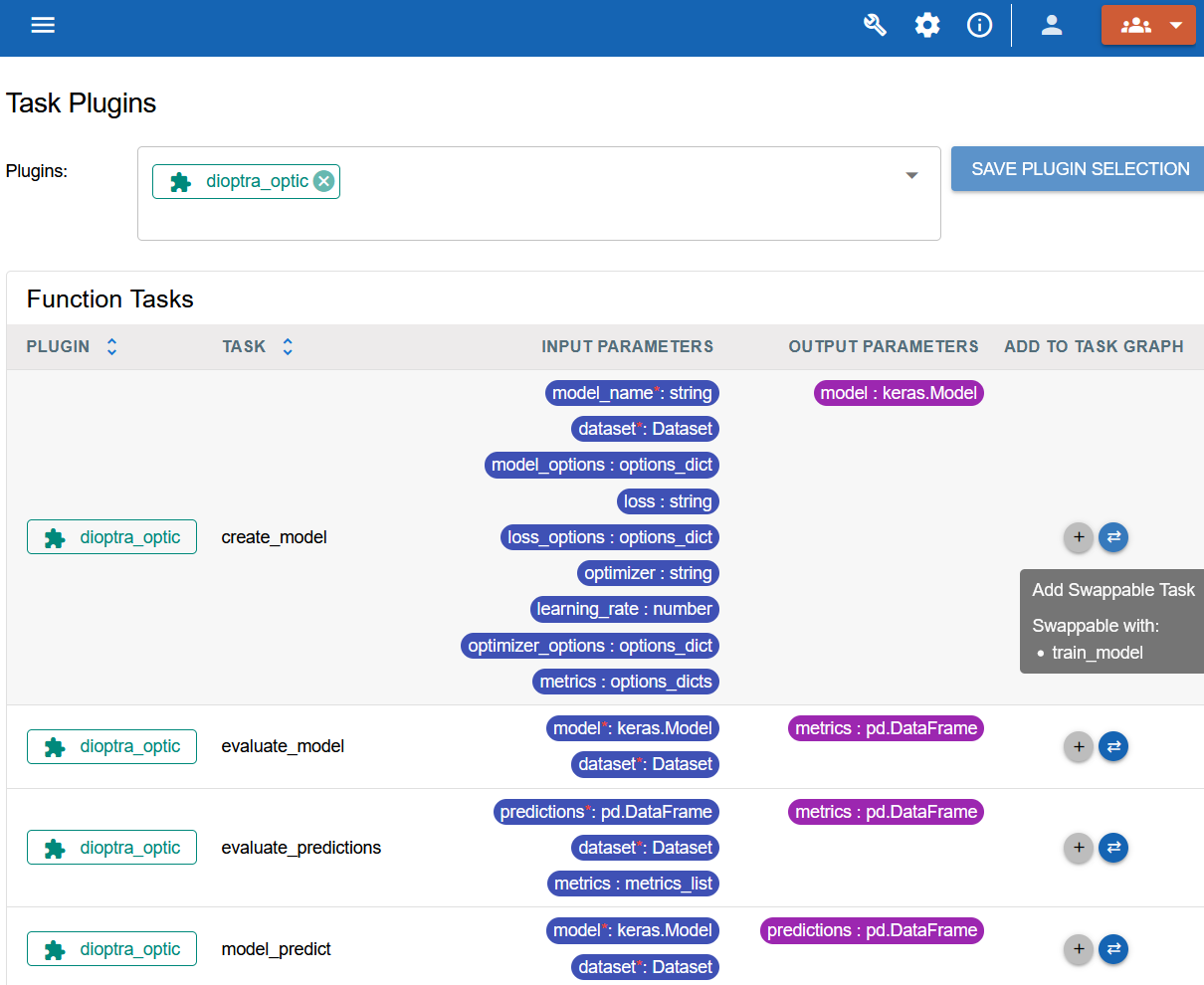
Clicking the Add a swappable task button#
In the Add Swappable Task dialog, select the tasks that should be available at the same step. When creating a new swap, select at least two tasks. The selected task is included automatically; select one or more additional compatible tasks, then click Confirm.
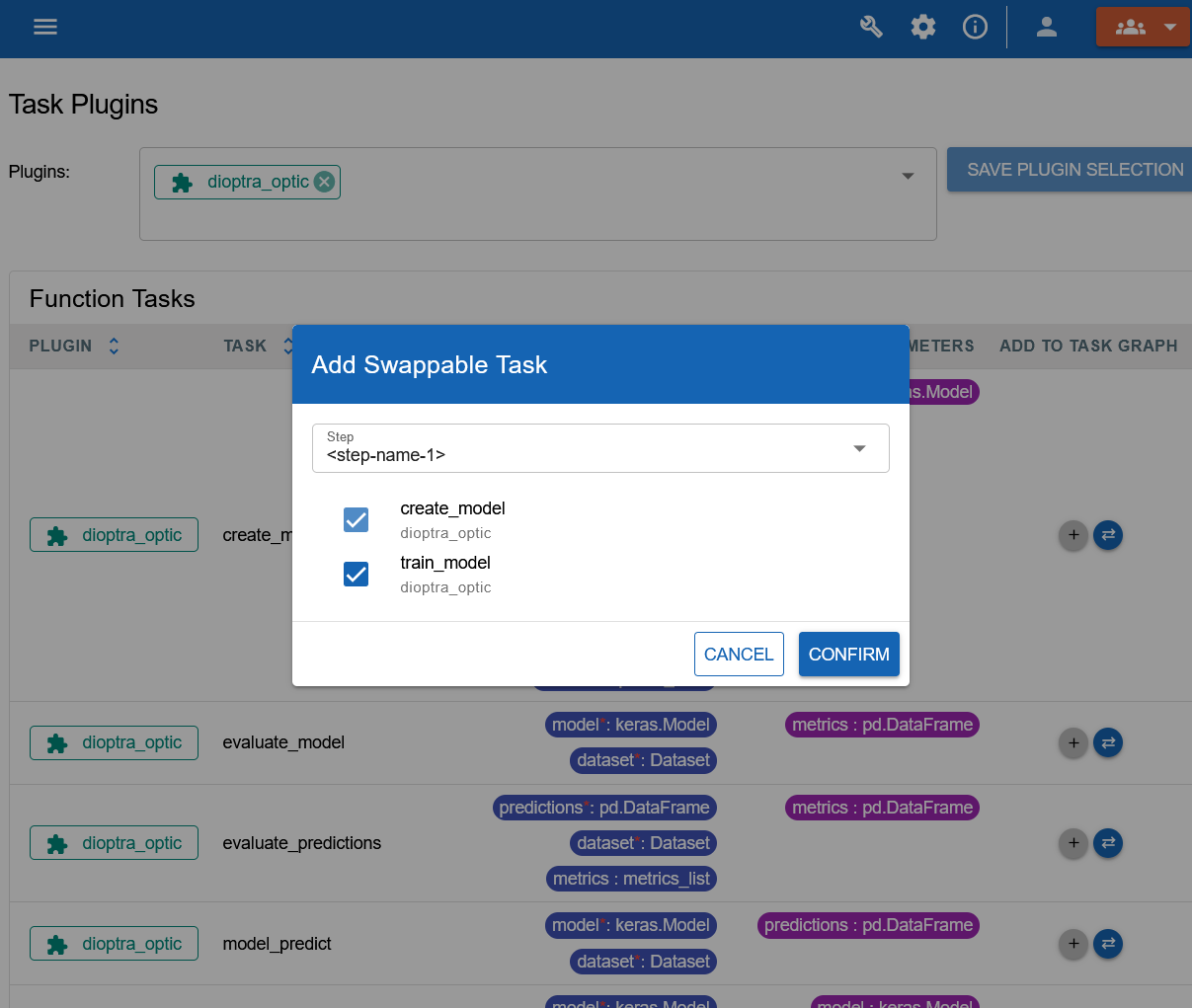
Selecting a task from the swappable task selection dialog#
Step 3: Create a new swap step or extend an existing one#
Use the Step menu in the dialog to choose where to add the task:
To create a new swap step, leave the default new step selected. Dioptra adds the selected tasks to the Task Graph YAML with placeholder step, swap, alias, and input-value names.
To add a task to an existing swap step, select that step from the Step menu, select the new alternate task, and click Confirm. Dioptra adds it as a new task alias in that swap group.
Update every placeholder and provide the correct input values for each task. For example, a completed swap step can look like this:
trained_model:
  ?training_method:
    ?outputs: [model]
    train_with_method_a:
      task: train_a
      kwargs:
        dataset: $dataset
    train_with_method_b:
      task: train_b
      kwargs:
        dataset: $dataset
The name following ? is the swap name. Except for the reserved ?outputs
list, the names beneath it are task aliases; a job uses an alias to select
which task runs.
The editor seeds ?outputs from the initially selected task’s output names.
Edit these names in YAML as needed; adding choices preserves this interface.
Downstream steps reference $trained_model.model regardless of the selected
task’s registered output name. Registered names are not exposed unless they
also appear in ?outputs. Names must be unique and nonempty; use
?outputs: [] for tasks without outputs.
Each choice must match the interface’s output count and have the same type name at each position. Dioptra maps the selected task’s returned values to the declared names by position when running the job.
Configuration responses and graph previews retain your step, swap, alias, and
registered task names. A selected swap shows its ?outputs declaration and
only the selected choice. Partial previews keep all choices for unresolved swaps.
Step 4: Save and use the swap#
Save the entrypoint after the task graph validates. When you create a job from the entrypoint, select exactly one task alias for each swap in the graph. The selected task runs for that step; all other steps run as defined by the graph. See Job Creation Workflow for instructions on creating a job and selecting its swap choices.
See Also#
Task Graph Explanation - Learn how task graphs and swaps are structured.
Task Graph Syntax - See Task Graph YAML requirements.
Specifying Swaps - Learn how to select a task alias when submitting a job.