Running Jobs#
This how-to explains how to run Jobs in Dioptra.
Prerequisites#
Prepare Your Deployment - A deployment of Dioptra is required.
Set Up Dioptra in the GUI - Access Dioptra services in the GUI, create a user, and login.
Create Queues - A queue and a worker on which to run the job are required, and must be associated with the entrypoint being used.
Create Entrypoints - An entrypoint describing the job and the plugins required for those entrypoints are required.
Create Experiments - An experiment containing the entrypoint to be used is needed.
Prepare Your Deployment - A deployment of Dioptra is required.
Set Up the Python Client - Connect to the Python Client in a Jupyter Notebook.
Create Queues - A queue and a worker on which to run the job are required.
Create Entrypoints - An entrypoint describing the job and the plugins required for those entrypoints are required.
Create Experiments - An experiment containing the entrypoint to be used is needed.
Job Creation Workflow#
Follow these steps to create and run a job. You can perform these actions via the Graphical User Interface (GUI) or programmatically using the Python Client.
Step 1: Prepare the experiment, entrypoint, and queue for the job#
In the Dioptra GUI, navigate to the Jobs tab. Click Create. Select an experiment, an entrypoint, and a queue for the job.
Enter a timeout using a human readable string (e.g. “24h”, “30m”, “30s”).
The default unit for the timeout is seconds (s) if not specified, and is based on the rq package.
Alternatively, h can be used to represent hours, and m can be used to represent minutes.
Note that the job will be stopped after this timeout is reached.
Optionally, enter a description for the job.
Retrieve the IDs for an experiment, entrypoint, and queue for the job using the corresponding client methods.
Experiment client GET method:
- ExperimentsCollectionClient.get(group_id: int | None = None, index: int = 0, page_length: int = 10, sort_by: str | None = None, descending: bool | None = None, search: str | None = None, show_deleted: bool | None = None) dioptra.client.experiments.T[source]
Get a list of experiments.
- Parameters
group_id – The group id the experiments belong to. If None, return experiments from all groups that the user has access to. Optional, defaults to None.
index – The paging index. Optional, defaults to 0.
page_length – The maximum number of experiments to return in the paged response. Optional, defaults to 10.
sort_by – The field to use to sort the returned list. Optional, defaults to None.
descending – Sort the returned list in descending order. Optional, defaults to None.
search – Search for experiments using the Dioptra API’s query language. Optional, defaults to None.
- Returns
The response from the Dioptra API.
Entrypoint client GET method:
- EntrypointsCollectionClient.get(group_id: int | None = None, index: int = 0, page_length: int = 10, sort_by: str | None = None, descending: bool | None = None, search: str | None = None, show_deleted: bool | None = None) dioptra.client.entrypoints.T[source]
Get a list of entrypoints.
- Parameters
group_id – The group id the entrypoints belong to. If None, return entrypoints from all groups that the user has access to. Optional, defaults to None.
index – The paging index. Optional, defaults to 0.
page_length – The maximum number of entrypoints to return in the paged response. Optional, defaults to 10.
sort_by – The field to use to sort the returned list. Optional, defaults to None.
descending – Sort the returned list in descending order. Optional, defaults to None.
search – Search for entrypoints using the Dioptra API’s query language. Optional, defaults to None.
- Returns
The response from the Dioptra API.
Queue client GET method:
- QueuesCollectionClient.get(group_id: int | None = None, index: int = 0, page_length: int = 10, sort_by: str | None = None, descending: bool | None = None, search: str | None = None, show_deleted: bool | None = None) dioptra.client.queues.T[source]
Get a list of queues.
- Parameters
group_id – The group id the queues belong to. If None, return queues from all groups that the user has access to. Optional, defaults to None.
index – The paging index. Optional, defaults to 0.
page_length – The maximum number of queues to return in the paged response. Optional, defaults to 10.
sort_by – The field to use to sort the returned list. Optional, defaults to None.
descending – Sort the returned list in descending order. Optional, defaults to None.
search – Search for queues using the Dioptra API’s query language. Optional, defaults to None.
- Returns
The response from the Dioptra API.
Step 2: Decide on parameterization for the job#
Entrypoints are parameterizable, and jobs can populate these parameters with values (or rely on defaults defined at entrypoint creation).
On the job creation page, under the Entrypoint Parameters section, enter values for the parameters or accept the defaults.
The parameter values are provided as a dictionary during job creation (step 5).
Step 3: Select any needed artifacts for the job#
Entrypoints may also require artifact parameters. Artifacts can be generated by other jobs, and the output type must match the type required by the entrypoint for that artifact input.
On the job creation page, under the Artifact Parameters section, select the artifact to be used for each artifact input. You can use the clock shaped button to select a specific artifact snapshot.
Client Method:
Use the client to retrieve the IDs of artifacts.
- ArtifactsCollectionClient.get(group_id: int | None = None, index: int = 0, page_length: int = 10, sort_by: str | None = None, descending: bool | None = None, search: str | None = None) dioptra.client.artifacts.T[source]
Get a list of artifacts.
- Parameters
group_id – The group id the artifacts belong to. If None, return artifacts from all groups that the user has access to. Optional, defaults to None.
index – The paging index. Optional, defaults to 0.
page_length – The maximum number of artifacts to return in the paged response. Optional, defaults to 10.
sort_by – The field to use to sort the returned list. Optional, defaults to None.
descending – Sort the returned list in descending order. Optional, defaults to None.
search – Search for artifacts using the Dioptra API’s query language. Optional, defaults to None.
- Returns
The response from the Dioptra API.
Step 4: Select swap choices (if applicable)#
If the selected entrypoint contains swappable tasks, choose which task alias to run for each swap before submitting the job.
On the job creation page, use the Swaps section to select one task alias for each swap in the entrypoint.
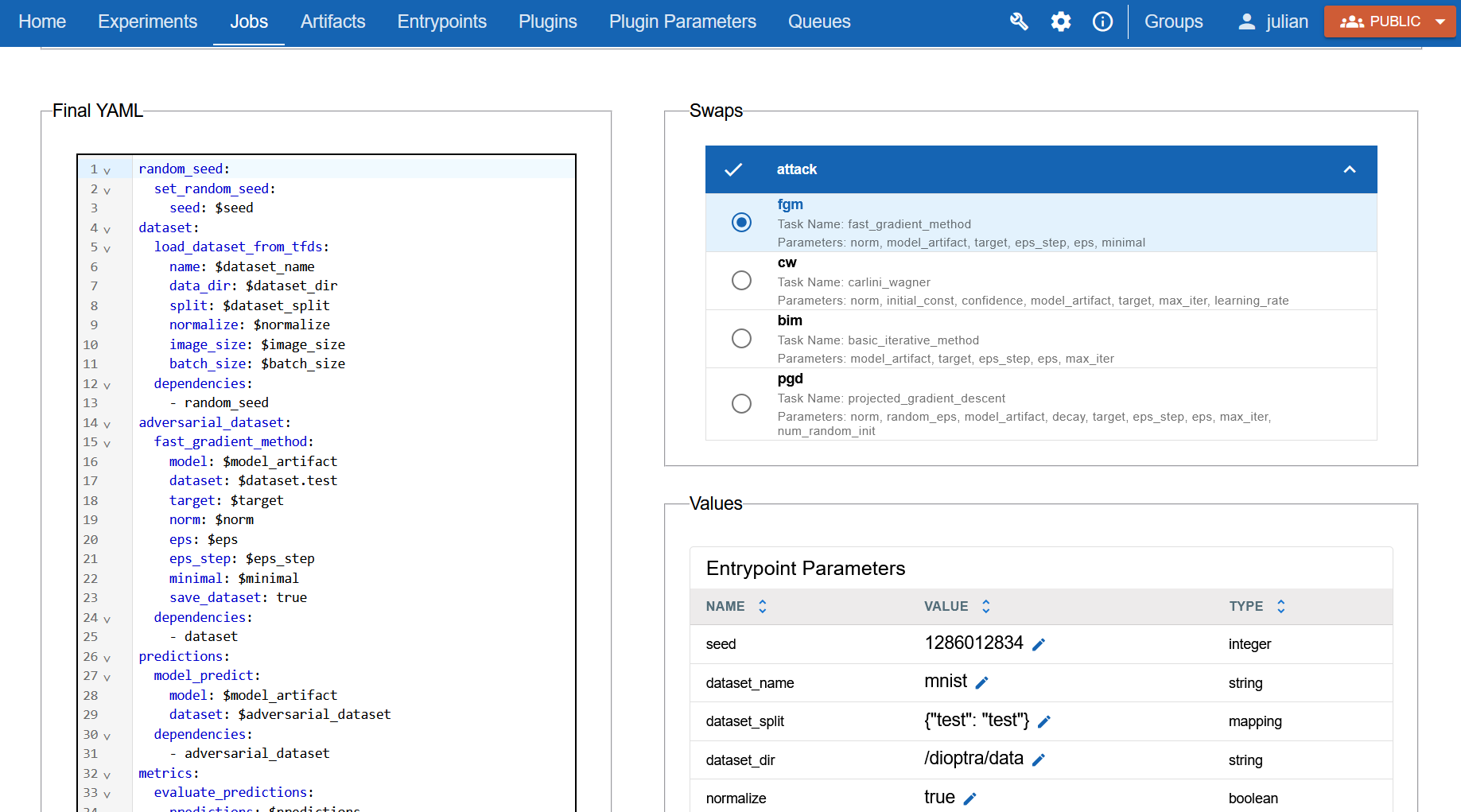
Provide a dictionary that maps every swap name to its selected task alias
in the swaps argument during job creation. For example:
swaps={"training_method": "training_method_A"}
Step 5: Run the job#
Once all the inputs are prepared, run the job.
Click Submit Job when all fields and parameter values are set.
Client Method:
Use the client to create the job.
- ExperimentJobsSubCollectionClient.create(experiment_id: str | int, entrypoint_id: int, queue_id: int, entrypoint_snapshot_id: int | None = None, values: dict[str, Any] | None = None, artifact_values: dict[str, Any] | None = None, timeout: str | None = None, description: str | None = None, swaps: list[dict[str, str]] | dict[str, str] | None = None) dioptra.client.experiments.T[source]
Creates a job for an experiment.
- Parameters
experiment_id – The experiment id, an integer.
entrypoint_id – The id for the entrypoint that the job will run.
queue_id – The id for the queue that will execute the job.
entrypoint_snapshot_id – The id for a snapshot associated with the entrypoint. If specified, the snapshotted version of the entrypoint will be used to run the job. If not specified, the job will use the latest version of the entrypoint. Defaults to None.
values – A dictionary of keyword arguments to pass to the entrypoint that parameterize the job. Default to None.
artifact_values – A dictionary of artifact input names associated with a value that is also a dictionary that contains the keys “id” and “snapshotId” whose values are the artifact resource id and the artifact resource snapshot id respectively. Defaults to None.
timeout – The maximum alloted time for a job before it times out and is stopped. If omitted, the job timeout will use the default set in the API.
description – The description for the job. Optional, defaults to None.
swaps – A list of swap choices. Each swap choice should contain two keys - the “swap_name” and the “task_alias” chosen for that swap name. Alternatively, if a single dictionary is provided, it will be assumed to be a mapping between swap names and choices and will be reformatted as a list.
- Returns
The response from the Dioptra API.
See Also#
Experiments and Jobs Explanation - Explanation of the purpose of experiments and jobs and how they relate to each other.
Artifacts Explanation - Learn about artifacts.