Usage Modes#
Users can interface with the Dioptra REST API through three primary workflows:
Graphical User Interface (GUI)
Python Client
Direct HTTP API calls
Overview#
The choice of workflow depends on the user’s technical requirements and the complexity of the experiment:
GUI: provides a visual, low-code approach for creating resources and monitoring jobs.
Python Client: for users who require programmatic control, allowing for complex orchestrations (such as parameter sweeps) and full end-to-end reproducibility.
Direct HTTP Calls: enables the integration of Dioptra endpoints into external applications or custom automation scripts.
These workflows are often complementary. A typical researcher might use the Python Client within a Jupyter Notebook to run a high-volume experiment loop while simultaneously using the GUI to monitor real-time job progress and inspect generated artifacts.
Graphical User Interface (GUI)#
The GUI is designed for interactive exploration and provides a user-friendly way to manage the test plaform.
Access: Once the Docker containers are running, the GUI is accessible at the port registered during the Cruft templating process (default:
http://localhost:5173/). Within any modern web browser, enter the registered port in the address bar and the login screen should appear.- Capabilities: The GUI provides comprehensive access to Dioptra’s many functionalities, including:
Creation, editing and importing of resources
Job execution, including easy insights into produced metrics, logs and artifacts
Creation, importing and editing of Python and YAML code for Plugins and Entrypoints
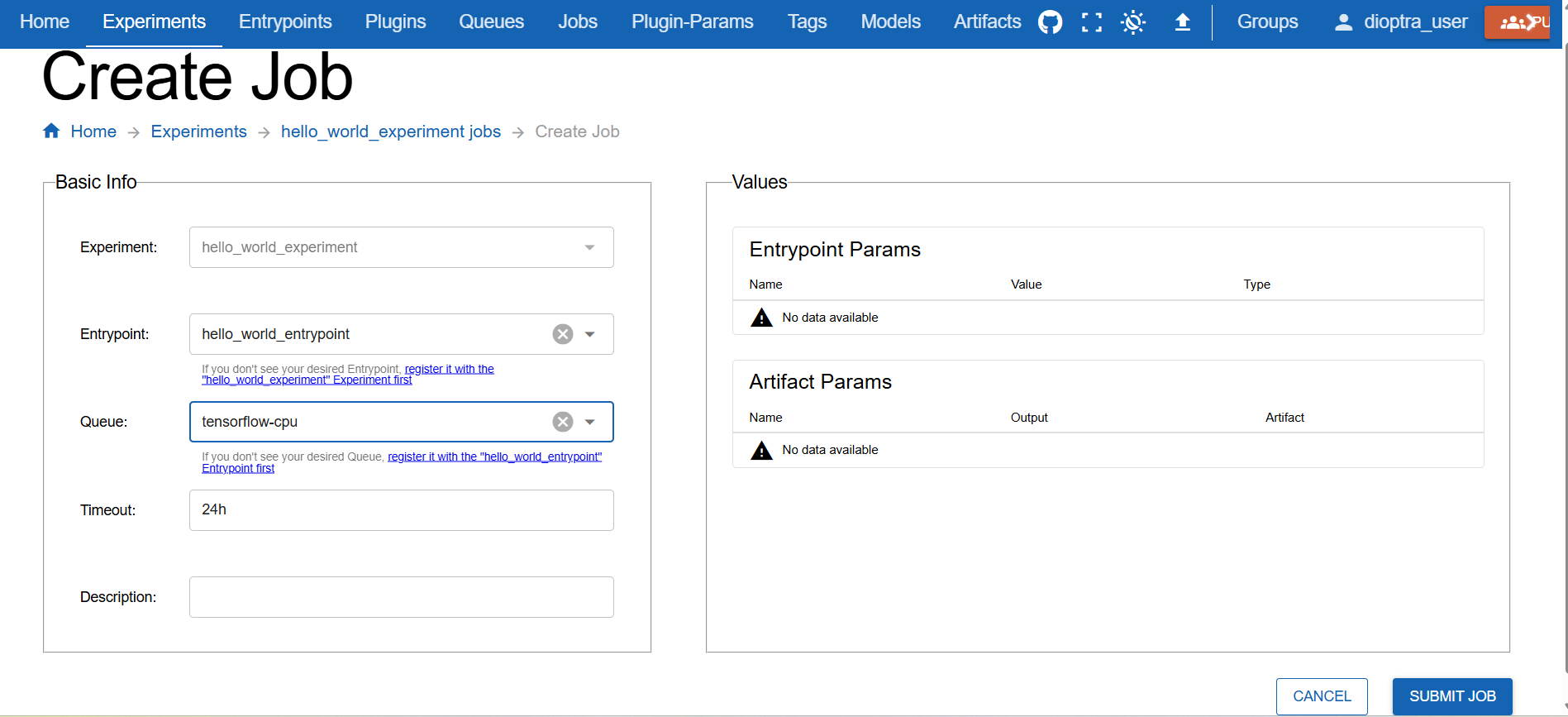
Example screenshot from the GUI#
Using the GUI#
To learn how to set up the GUI, ensure you have installed Dioptra, and then follow the Hello World Tutorial, which instructs users how to get up and running in the GUI.
Note
Development of the GUI follows the development of the REST API. Consequently, new capabilities may appear in the API and Python Client before they are fully integrated into the GUI.
Python Client#
The Python Client is the preferred interface for researchers and developers who require programmatic control or wish to orchestrate complex meta-experiments. It enables the automated creation of resources and job submission, with responses returned in JSON format.
Advantages:
Meta-level Orchestration: Workflows can be embedded within loops to automate large-scale parameter sweeps and nested experiments.
Notebook Integration: The client can be used within Jupyter Notebooks, allowing code, experiment logic, and artifact visualization to exist in a single document.
Integration in Python Environment: Using the client within Python scripts allows Dioptra tasks to be integrated into larger data science pipelines and custom automation logic.
Workflow Tradeoff
For simple tasks or minor adjustments, the GUI may be more efficient as it replaces programmatic resource lookups with visual tables and menus. In the Python Client, users must retrieve and reference specific resource IDs, which introduces a higher initial overhead.
Consequently, many users adopt a hybrid approach: designing complex orchestrations via the Python Client while using the GUI for real-time monitoring and iterative tweaks.
Using the Python Client#
Setup Instructions
Refer to How To Setup the Python Client for an example Python Client workflow.
Usage Examples
Client Documentation
The methods for the Python Client are documented in the Dioptra source code. You can view those methods at Python Client Methods. Additionally, many common workflows are documented in the How To: Running Experiments guides.
Direct REST API access (HTTP)#
Advanced users may choose to interact directly with the REST API using standard HTTP methods. This workflow may be useful for:
System Integration: Incorporating Dioptra functionality into existing workflows.
Language Agnostic: Allows automation and interaction using a programming language agnostic interface.
HTTP Endpoints Documentation
For a complete list of endpoints and schemas, refer to the REST API Reference.